Projects
Nagios Core - Status Map Customization (Legacy)
Overview
This KB article explains how you can customize the legacy network status map in Nagios Core. The aim of the article is to educate you on how you can open the map to specific layouts by customizing the URL in your web browser.
The legacy status map was the only map available up until Nagios Core 4.1.0. As of Nagios Core 4.1.0 the legacy map is accessed in the left navigation pane by clicking the (Legacy) link.
Map Basic URL
The Nagios Core interface does not provide much customization in regards to the default views available when accessing the map. However the map itself is simply a URL that can be customized, so adding that URL as a favorite to your web browser provides this functionality.
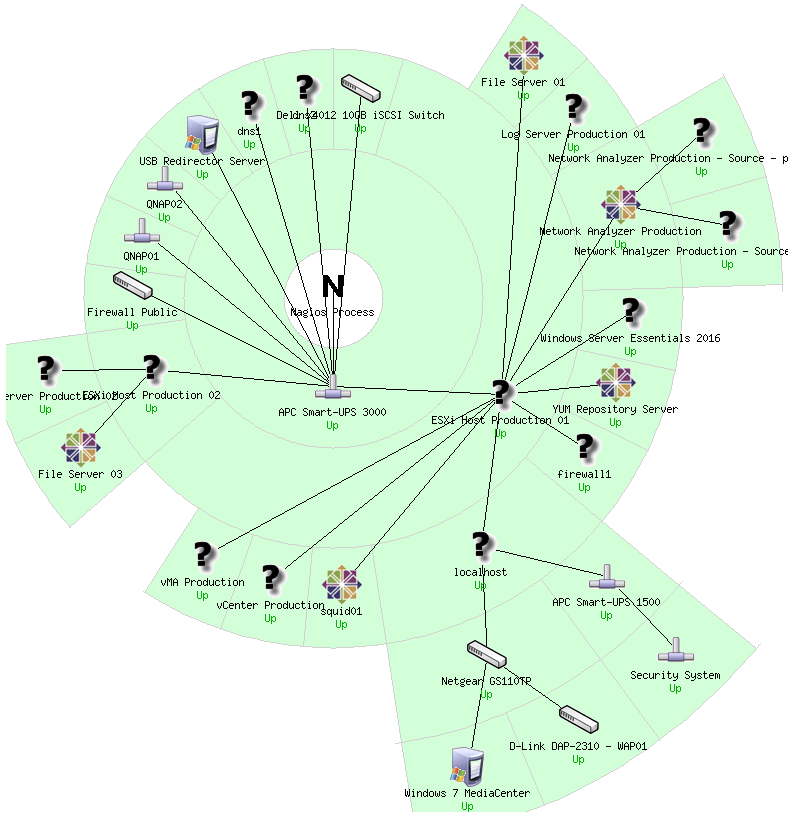
The first example is to show a default map and the corresponding URL. In your Nagios Core web interface, while holding CTRL on your keyboard click the Map (Legacy) link. This will open the map in a new browser window or tab. If this did not work right click on the Map (Legacy) link and select to open in a new window / tab. You will be presented with a map similar to the following:

In the web browser address bar have a look at the URL, it will be something like:
https://10.25.5.1/nagios/cgi-bin/statusmap.cgi?host=all
The statusmap.cgi is how the legacy map is called, this KB article will refer to it as the CGI.
The question mark (?) is how you pass arguments to the CGI. The default argument being passed is host=all which means all objects are shown. Any additional arguments are separated with an ampersand (&) and this is demonstrated in the Options section in this KB article.
With that in mind, let's change that to an object on the map, like host=firewall1 which will update the page as follows:

You can now see that the firewall1 object has been highlighted and in addition a zoom bar has been added to the top of the page.
Map Layout
If the previous screenshots are different to your status map, or you get a "drawing coordinates" message then you will be using a different map layout. The previous screenshots use the Circular (Balloon) layout.
You can change the layout when viewing the page by selecting it from the Layout Method drop down list and then click the Update button. However this change is not permanent.
You can define the default map layout in the /usr/local/nagios/etc/cgi.cfg file. Here is an example:
default_statusmap_layout=6
| Value | Layout Method |
| 0 | User-defined coordinates |
| 1 | Depth layers |
| 2 | Collapsed tree |
| 3 | Balanced tree |
| 4 | Circular |
| 5 | Circular (Marked Up) |
| 6 | Circular (Balloon) |
You can also define a layout in your custom URL, this is performed by providing an argument like layout=4 in the URL. When providing multiple arguments they are separated with an ampersand (&), so building on the previous URL it would be typed as:
https://10.25.5.1/nagios/cgi-bin/statusmap.cgi?host=firewall1&layout=4
This would show a map similar to the following:

The User-defined coordinates layout uses the 2d_coords directive that is defined in host object definitions. Only objects that posses the 2d_coords directive will be displayed in this map layout. More information on this directive can be found here:
Nagios Core - Object Definitions - Host Definitions
Options
Now that you have an understanding of how you can build a custom URL, the remaining options available are explained below. Multiple options are separated with an ampersand (&) as you will see in the examples below.
canvas_x and canvas_y
These are the upper left coordinates (x and y axis) of the drawing canvas. They can be individually used or combined together.
https://10.25.5.1/nagios/cgi-bin/statusmap.cgi?canvas_x=200&canvas_y=350
canvas_width and canvas_height
Defines the width of the canvas on the x axis and height of the canvas on the y axis. They can be individually used or combined together.
https://10.25.5.1/nagios/cgi-bin/statusmap.cgi?canvas_width=800&canvas_height=1000
createimage
This creates a PNG image of the map.
https://10.25.5.1/nagios/cgi-bin/statusmap.cgi?createimage
embedded
This creates a basic map without any header of footer HTML (no styling), useful for embedding in other custom web pages.
https://10.25.5.1/nagios/cgi-bin/statusmap.cgi?embedded
host
This allows you to define the focus of the map.
https://10.25.5.1/nagios/cgi-bin/statusmap.cgi?host=firewall1
layer and layermode
The layer argument allows you to specify a hostgroup of objects to focus on. Multiple hostgroups can be selecting simply by defining the layer argument multiple times in the URL. The layermode defines if those objects should be displayed (include) or hidden (exclude).
https://10.25.5.1/nagios/cgi-bin/statusmap.cgi?layer=linux-servers&layermode=include
layout
This allows you to define the layout you want to use for the map. All options available are explained in the Map Layout section of this KB article.
https://xiproduction.box293.local/nagios/cgi-bin/statusmap.cgi?layout=5
max_width and max_height
Defines the maximum size the canvas. The entire network map will be scaled to fit within these sizes. They can be individually used or combined together.
https://10.25.5.1/nagios/cgi-bin/statusmap.cgi?max_width=700&max_height=800
noheader
This displays the map without the top information or choices (styling still applied), useful for embedding in other custom web pages.
https://10.25.5.1/nagios/cgi-bin/statusmap.cgi?noheader
nohighlights
On some layouts it removes highlighting on objects like the focused object.
https://10.25.5.1/nagios/cgi-bin/statusmap.cgi?layout=3&nohighlights
nolinks
Removes any connecting lines between objects.
https://10.25.5.1/nagios/cgi-bin/statusmap.cgi?nolinks
nopopups
Removes any pop-ups when hovering over objects with the mouse.
https://10.25.5.1/nagios/cgi-bin/statusmap.cgi?nopopups
notext
Removes text on the objects.
https://10.25.5.1/nagios/cgi-bin/statusmap.cgi?notext
proximity_width and proximity_height
These options generally only apply when used in conjunction with other options like host. They defines the size of the diagram in relation to the object being focused on.
https://10.25.5.1/nagios/cgi-bin/statusmap.cgi?host=firewall1&proximity_width=400&proximity_height=400
scaling_factor
This is how much the diagram is magnified or reduced, the default value is 1and only positive floating numbers can be used. To reduce the map use numbers like 0.5.
https://10.25.5.1/nagios/cgi-bin/statusmap.cgi?scaling_factor=3
Here is an example of using several options above:
https://10.25.5.1/nagios/cgi-bin/statusmap.cgi?layout=5&nohighlights&noheader
Map Behavior
In the screenshots shown above you can see lines joining all of the objects. The is the parent relationship being reflected in the Nagios Core object definitions. For example the "APC Smart UPS 3000" is the parent host for "ESXi Host Production 01" which in turn is the parent host for a number of other hosts. Defining parent relationships in your object definitions helps visualize when problems occur and possibly pinpoint the source of the problem quickly.
The hosts will also display their state, such as Up or Down.
Final Thoughts
For any support related questions please visit the Nagios Support Forums at: