Library

Docs
Beta

Products

Adding MATCH Statements in the SNMP Trap InterfaceAutomatic Agent DeploymentAutomatic Nagios Core Migration to Nagios XIHow To Add A New User In Nagios XIHow To Configure Contact Groups in Nagios XIHow To Customize Your Dashboards With Dashlets In Nagios XIHow To Install Nagios XI via SourceHow To Manage MIBs In Nagios XIHow To Monitor A Gateway Switch With Nagios XIHow To Monitor A System Using SSHHow To Monitor DNS Servers and Queries with Nagios XIHow To Monitor Printers with Nagios XIHow To Monitor Security Cameras using Nagios XIHow To Monitor Websites with Nagios XIHow To Monitor Windows Machines With NCPA In Nagios XIHow To Monitor Windows Using SNMP In Nagios XIHow To Monitor Windows Using WinRMHow To Monitor your Mac OS/X devices using Nagios XIHow To Perform Nagios XI Landing Page CustomizationHow To Repair Crashed DatabasesHow To Select The Right Nagios XI Download For Your EnvironmentHow To Use Capacity PlanningHow To Use Scheduled ReportsHow To View The Latest Alerts In Nagios XIHow To configure Email Notifications in Nagios XIHow To configure Nagios XI to support Multi TenancyHow To configure your Timezone in Nagios XIHow To evaluate Nagios XI using -Hyper VHow To install Nagios XI in AWSHow To install Nagios XI using ESXiHow To install Nagios XI using Hyper VHow To install Nagios XI using VMware WorkstationHow To install Nagios XI using VMwareHow To install additional Configuration Wizards in Nagios XIHow To integrate Slack with Nagios XI 2024How To transfer Nagios XI from CentOS 7 to CentOS 9How To understand Users and Contacts in Nagios XIHow To update/upgrade Nagios XIHow To use Auto Discovery to setup host and service checks in XIHow To use Bulk Host Cloning and the Import WizardHow To use Business Process Intelligence (BPI)How To use Dashboards in Nagios XIHow To use Hypermap in Nagios XIHow To use Minemap MonitoringHow To use Nagios XI to Monitor Active DirectoryHow To use Tactical Overview in Nagios XIHow To utilize Reports and Graphs in Nagios XIHow To utilize Standard Edition (SE) ReportsHow to Agentless Monitor a Windows Machine with Nagios XIHow to Configure Contacts in Nagios XIHow to Use Custom Includes Component in Nagios XIInstalling on Non Standard SystemsManaging Contact TemplatesManaging Host TemplatesManaging Service TemplatesMigrating Nagios XI to a different ServerMonitoring Amazon EC2Monitoring Linux using NCPAMonitoring Office 365 Subscription ServicesMonitoring WebLogic on WindowsMonitoring Windows using NCPANagios Integrating MNTOSNagios XI 10,000 Services and growing NWC14Nagios XI API’s NWC13Nagios XI Accessing And Utilizing The Core Config ManagerNagios XI Activating Your LicenseNagios XI Add NagVis Map To A ViewNagios XI Adding And Removing A Host Using The APINagios XI Adding And Removing A Service Using The APINagios XI Adding Services To Pre existing Switch or RouterNagios XI Adding Windows Disk Usage Checks In XINagios XI Admin TourNagios XI Administrative User AccountsNagios XI Administrator GuideNagios XI Advanced Features of Nagios XI NWC14Nagios XI Ansible TutorialNagios XI Architecture OverviewNagios XI Audit LogNagios XI Automated Host Management In Nagios XINagios XI BPI XML CacheNagios XI Backend APINagios XI Backing Up And Restoring Your Nagios XI SystemNagios XI Backup and Restore OptionsNagios XI Bandwidth Graphs Showing 0Mb/s in Non English SystemsNagios XI Best Practices NWC15Nagios XI Best Practices for Managing ConfigsNagios XI Business Process IntegrationNagios XI Changing Host Alive CheckNagios XI Changing The Check Interval Of A ServiceNagios XI Changing The System TimeNagios XI Check Interval ConsiderationsNagios XI Checking Program Loadtime With autoIT in Nagios XINagios XI Cleaner Cron ArchitecureNagios XI Cloning UsersNagios XI Command Subsystem ArchitectureNagios XI Configuration Wizards and TemplatesNagios XI Configure PHP Development EnvironmentNagios XI Configuring Core Contacts to Use XI’s phpmailer SMTP SettingsNagios XI Configuring DowntimeNagios XI Configuring FTP For NSClient++ DeploymentNagios XI Configuring Global Event HandlersNagios XI Configuring Inbound ChecksNagios XI Configuring NSClient++Nagios XI Configuring Notification PreferencesNagios XI Configuring Outbound ChecksNagios XI Configuring Passive Services With Nagios XINagios XI Configuring SSL for Nagios XINagios XI Connecting To Your Email ServerNagios XI Conversion for VirtualBoxNagios XI Cool Tips & Tricks NWC14Nagios XI Core Config Manager Bulk Modification ToolNagios XI Core Config Manager Bulk Renaming ToolNagios XI Core Config Manager Configuration SnapshotsNagios XI Core Config Manager Escalation WizardNagios XI Core Config Manager Host GroupsNagios XI Core Config Manager How It WorksNagios XI Core Config Manager Service GroupsNagios XI Core Configuration Mananger Display IssuesNagios XI Core Configuration Mananger Mass ChangesNagios XI Create Actions URL Link In Quick Actions MenuNagios XI Create Host And Service URLs With FiltersNagios XI Creating Nagios XI WizardsNagios XI Cron JobsNagios XI Custom Wizards, Components and Dashlets NWC12Nagios XI Customizing The Landing PageNagios XI DB Maintenance ArchitectureNagios XI Database OptimizationNagios XI Display All Scheduled ReportsNagios XI Distributed Monitoring With NRDPNagios XI Downgrading Nagios CoreNagios XI Downloading A System ProfileNagios XI Email Notifications With ColorNagios XI Enabling Ping ActionNagios XI Enterprise Edition ReportsNagios XI Event Manager ArchitectureNagios XI Excluding Hosts And HostgroupsNagios XI Exploring the Graph ExplorerNagios XI Exporting the Config DatabaseNagios XI Folder Watch WizardNagios XI Gauges Understanding ThresholdsNagios XI Generating GraphsNagios XI Generating Reports With Nagios XINagios XI Google Map IntegrationNagios XI Group Deployment of Service Checks NWC15Nagios XI GroupsNagios XI Host and Service Details OverviewNagios XI Hostgroup InheritanceNagios XI How SNMP Traps WorkNagios XI How SNMP Works A Quick GuideNagios XI How To Achieve High AvailabilityNagios XI How To Apply Configuration Using The APINagios XI How To Check For Windows Updates With Nagios XINagios XI How To Create A Virtual Instance In The Amazon EC2 Cloud EnvironmentNagios XI How To Delete A Data Source From An RRD FileNagios XI How To Install On Windows Using Hyper VNagios XI How To Install On Windows Using VMwareNagios XI How To Install On Windows Using vSphereNagios XI How To Monitor A Websensor EM08Nagios XI How To Monitor Apache ActiveMQ With Nagios XINagios XI How To Monitor Apache TomcatNagios XI How To Monitor Devices Using The NCPA Agent and WizardNagios XI How To Monitor Docker ContainersNagios XI How To Monitor GlassFishNagios XI How To Monitor JBoss/WildFlyNagios XI How To Monitor JMX With Nagios XINagios XI How To Monitor Jetty JMXNagios XI How To Monitor WebLogicNagios XI How To Monitor Website Defacement With Nagios XINagios XI How To Select A DownloadNagios XI How To Test Check Commands From The Command lineNagios XI How To Use CA Certificates With check_ldaps PluginNagios XI How To Use Capacity PlanningNagios XI How To Use Deadpool In Nagios XINagios XI How To Use The Actions ComponentNagios XI How To Use The Bulk Host Cloning & Import WizardNagios XI How To Write Custom ComponentsNagios XI How XI WorksNagios XI How to Authenticate and Import -Users with Active DirectoryNagios XI How to Change Default PasswordsNagios XI How to Configure Email And Text NotificationsNagios XI How to Generate SLA ReportsNagios XI How to Install & Configure the Oracle Client & PluginsNagios XI How to Integrate SNMP Traps With Nagios XINagios XI How to Integrate the Bischeck Plugin Extension with Nagios XINagios XI How to Manage Remote Nagios XI ServersNagios XI How to Manually Update Nagios XINagios XI How to Monitor Apache Cassandra Distributed DatabasesNagios XI How to Monitor an AKCP SensorProbe2 using SNMPNagios XI How to Restart A Windows Service With NRPENagios XI How to Upgrade Using the Web UINagios XI How to Use the NSCA AddonNagios XI Importing Config Files From Nagios Core into Nagios XINagios XI Importing Nagios XI into Microsoft Hyper VNagios XI Inbound Email CommandsNagios XI Installing NSClient++Nagios XI License EntitlementsNagios XI Integrating Mod Gearman With Nagios XINagios XI Integrating Mod_Security With Nagios XINagios XI Integrating NagVis With Nagios XINagios XI Integrating On Call Schedules with Nagios NWC13Nagios XI Integrating PuTTY SSH LinksNagios XI Integrating Slack With Nagios XINagios XI Integrating autoIT With NagiosNagios XI Introduction Getting Started with Nagios XI NWC14Nagios XI Introduction to Event HandlersNagios XI JavaScript and jQuery Tips, Tricks and How To NWC14Nagios XI Leveraging and Understanding Performance Data and Graphs NWC13Nagios XI License Maintenance Status CheckNagios XI Link Directly to Graph Explorer GraphsNagios XI Log Locations and DescriptionsNagios XI Log Monitoring with SwatchNagios XI Log Server Integration WizardNagios XI Logging InNagios XI MRTG Clean ConfigsNagios XI Macros and Custom Object VariablesNagios XI Manage MIBs ArchitectureNagios XI Managing ComponentsNagios XI Managing Mobile CarriersNagios XI Managing Plugins In Nagios XINagios XI Managing UsersNagios XI Manual Backup And Restore DatabasesNagios XI Manual Config File ManagementNagios XI Mass Acknowledgement in Nagios XI 2024Nagios XI Mass Delete Old RRD FilesNagios XI Maximizing Performance In Nagios XINagios XI Migrate Performance DataNagios XI Migrating From Nagios CoreNagios XI Mobile User InterfaceNagios XI Mod Gearman Queues and WorkersNagios XI Modifying The Contents Of /usr/local/nagios/etcNagios XI Monitor Active Directory with LDAPNagios XI Monitoring A MySQL ServerNagios XI Monitoring A Nagios XI ServerNagios XI Monitoring A Router Or SwitchNagios XI Monitoring A Website URLNagios XI Monitoring A Windows DesktopNagios XI Monitoring AIX With NagiosNagios XI Monitoring An FTP ServerNagios XI Monitoring An LDAP ServerNagios XI Monitoring Apache Tomcat With XINagios XI Monitoring DNS QueriesNagios XI Monitoring Hosts Using NRPE and NRPE Monitoring WizardNagios XI Monitoring Hosts Using SSHNagios XI Monitoring Linux ServersNagios XI Monitoring Linux Using NRPE and Linux Server Monitoring WizardNagios XI Monitoring Linux Using SNMPNagios XI Monitoring Microsoft SQLNagios XI Monitoring MongoDBNagios XI Monitoring OS/X with Nagios XINagios XI Monitoring Performance Counters in Nagios Using NCPANagios XI Monitoring Performance Counters in Nagios Using NSClient++Nagios XI Monitoring TCP/UDP PortsNagios XI Monitoring Unconfigured ObjectsNagios XI Monitoring Using the Full Power of Nagios XI Enterprise NWC15Nagios XI Monitoring VMware Virtualization Using vMA NWC14Nagios XI Monitoring VMware With Nagios XINagios XI Monitoring Websites With Nagios XINagios XI Monitoring Windows ServersNagios XI Monitoring Windows Using NSClient++Nagios XI Monitoring Windows With NCPANagios XI Monitoring Windows With SNMPNagios XI Monitoring the Nagios XI localhostNagios XI Moving Your XI InstallationNagios XI Multi Tech iSMS IntegrationNagios XI MultiTech MTR API IntegrationNagios XI MySQL/MariaDB Max ConnectionsNagios XI NSP Sorry Dave, I can’t let you do thatNagios XI Nagios AgentsNagios XI Nagios Network Analyzer Reports In XINagios XI Nagios Rapid Deployment Options NWC14Nagios XI Navigating The Nagios XI DashboardNagios XI Network Status Map Customization (Legacy)Nagios XI Network Status Map CustomizationNagios XI Non Administrative UsersNagios XI Offloading MySQL to Remote ServerNagios XI Optimizing The PHP Settings FileNagios XI Overview of ReportingNagios XI Passive Monitoring With NRDS_WinNagios XI Passive Monitoring with NRDSNagios XI Performance Data ArchitectureNagios XI Performance Data AveragingNagios XI Performance Graphs & Graph ExplorerNagios XI Ports And ProtocolsNagios XI Receiving SNMP Traps From Nagios Network AnalyzerNagios XI Recurring Downtime SystemNagios XI Redundancy And Security PlanningNagios XI Removing All Historical DataNagios XI Restarting A Linux Service With NRPENagios XI Restarting Linux Services With NCPANagios XI Restarting Windows Services With NCPANagios XI Restoring A Configuration SnapshotNagios XI Restoring Default ConfigurationNagios XI Running Auto Discovery JobsNagios XI SNMP Monitoring SeriesNagios XI SNMP Trap HardeningNagios XI SNMP Trap TutorialNagios XI SNMP Trap v3 ConfigurationNagios XI SNMP Traps with NXTINagios XI STRICT_TRANS_TABLESNagios XI Scheduled Backup Log LevelNagios XI Scheduling Reports and PagesNagios XI Scheduling ReportsNagios XI Securing Your Nagios Server NWC13Nagios XI Sending SNMP TrapsNagios XI Service DependenciesNagios XI Setup Nagios XI to Send SMS AlertsNagios XI Should You Change RRD Retention PeriodsNagios XI Solaris Monitoring OptionsNagios XI Special CharactersNagios XI Standard Edition ReportsNagios XI Switch and Router Wizard ArchitectureNagios XI System RequirementsNagios XI Terminology OverviewNagios XI Two Factor AuthenticationNagios XI Under the Hood NWC15Nagios XI Understanding And Using Configuration WizardsNagios XI Understanding And Using DashboardsNagios XI Understanding And Using XI ToolsNagios XI Understanding Email SendingNagios XI Understanding Multi TenancyNagios XI Understanding Notification EscalationsNagios XI Understanding Notification VariablesNagios XI Understanding The User Macros ComponentNagios XI Understanding User MacrosNagios XI Understanding User PermissionsNagios XI Understanding the Nagios XI Directory StructureNagios XI Update Components And WizardsNagios XI Update Default snmptt.conf EVENTNagios XI Upgrading Nagios CoreNagios XI User GuideNagios XI Upgrading The Linux NRPE AgentNagios XI Uploading and Managing MIBSNagios XI Users And ContactsNagios XI Using Auto DiscoveryNagios XI Using DUO Two Factor AuthenticationNagios XI Using Different Notification MethodsNagios XI Using NSClient++ For Passive ChecksNagios XI Using Nagios BPINagios XI Using Nagios XI As A Security Tool Software VersionsNagios XI Using Nagios XI As A Security Tool Website DefacementNagios XI Using Recurring DowntimeNagios XI Using SSL with XI Active DirectoryNagios XI Using Scripts / Plugins With NCPANagios XI Using Scripts / Plugins With NSClient++Nagios XI Using The Config Import Prep ToolNagios XI Using The Core Config Manager For Host ManagementNagios XI Using The Core Config Manager For Service ManagementNagios XI Using The Custom Includes ComponentNagios XI Using The Host And Service Object Notes ComponentNagios XI Using The SNMP Walk WizardNagios XI Using The Traceroute ActionNagios XI Using ViewsNagios XI Using rrdcached with Nagios XINagios XI Using the Negate PluginNagios XI Utilizing Data Visualizations in Systems Management -NWC14Nagios XI Utilizing a RAM Disk in Nagios XINagios XI Virtual Machine NotesNagios XI WatchGuard Wizard UsageNagios XI Web Interface ArchitectureNagios XI What Is A Performance CounterNagios XI Wizards AchitectureNagios XI XI Server ConsiderationsNagios Xi Masquerading As Another UserNetwork Monitoring With NagiosNon Admin Walkthrough of Nagios XIParent/Child Host RelationshipsStarting a Nagios XI TrialTemplate IntroductionThird Party Plugins in Nagios XITwilio SMS IntegrationUnderstanding Hosts and Services in Nagios XIUnderstanding Tools in Nagios XIUsing The Generic Plugin Monitoring Wizard In Nagios XIUsing the Nagios XI World MapViewing Configuration Snapshot differencesWebInject InstructionsWorking with Hosts on the Mobile InterfaceWorking with Services on the Mobile InterfaceXI 5.10.0 and newer Postgress to MySQL ConversionOvercoming lack of VMware SDK with VMware Wizard

Adding MATCH Statements in the SNMP Trap Interface

Overview

The purpose of this article is to document how to setup MATCH statements in the SNMP Trap interface.

By default, when a Trap is setup in Nagios XI, all traps for that entry are received as an OK status, so no matter what is received the status in the check in Nagios will always show an OK status, even though a trap with a bad status was received.

The MATCH statement gives the ability to show OK, Warning, and Critical status in Nagios depending on the trap data that was received from the device that is sending Traps to the Nagios XI server.

Example

For this document, we are going to use the Example Trap Definition.

  1. To add it, login to the Nagios XI interface and go to the Admin > SNMP Trap Interface menu and click on the Advanced Tab.

  2. Click the button called Add Example Trap Definition to add the example.
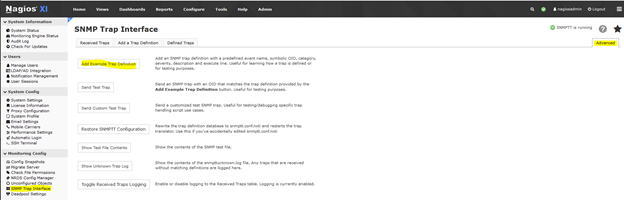
Add Example Trap Definition

  1. Click on the Defined Traps Tab and use the following to search for the Example TRAP: netSnmpExampleHeartbeatNotification

Search for Example Trap

  1. To view the Trap Definition, click on the Edit icon on the right. (The Pencil icon). Here you will see the default entry.
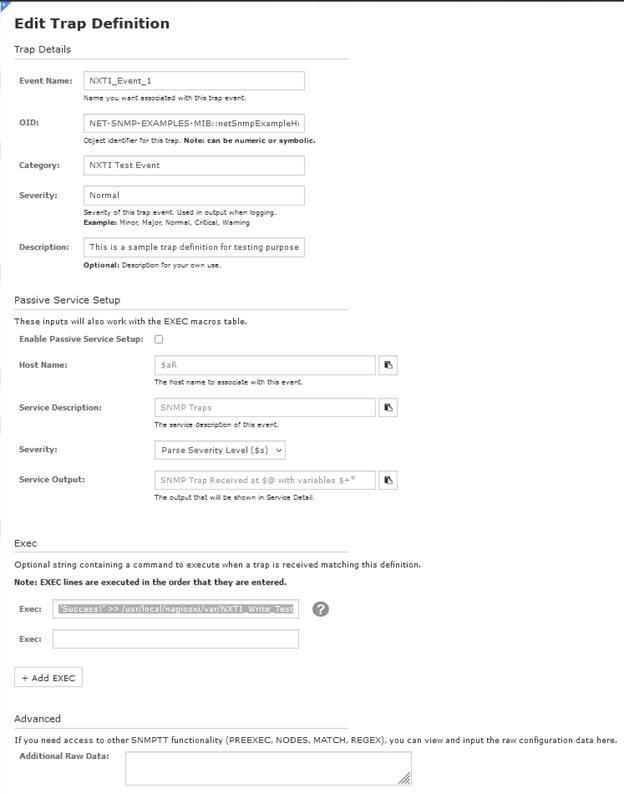
View Trap Definition

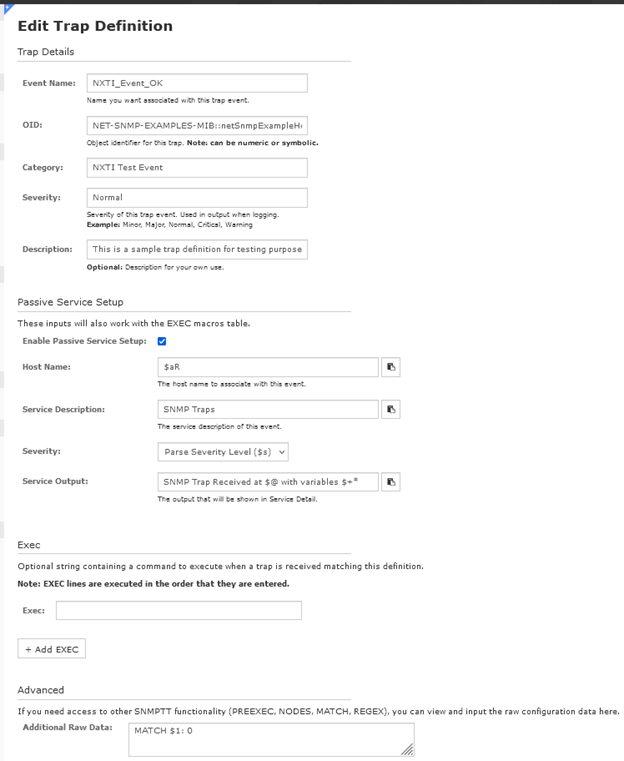
  1. To use this Trap, some Modifications will have to be done. We will be settings this trap for the OK status Trap.

  2. Change the Event Name to NXTI_Event_OK.

  3. Then enable the Enable Passive Service Setup by checking the box.

  4. Put $aR in the Host Name field.

  5. Put SNMP Traps in the Service Description field.

  6. In the Service Output field, enter in the following: SNMP Trap Received at $@ with variables $+*

  7. From the first Exec Line, remove the following so it is blank: echo 'Success!' >> /usr/local/nagiosxi/var/NXTI_Write_Test

  8. In the Additional Raw Data field, put in the following MATCH statement: MATCH $1: 0

  9. Click the Submit button to save.

Modified Trap Definition

See this link for more details on the MATCH statement.

Testing the Match Statement

The MATCH example used above will send an OK status to Nagios if that example trap is received on the server with the first field set to a 0 as an integer.

To test this out, you can run the following command from a root shell on the Nagios server.

/usr/bin/snmptrap -v 2c -c public 127.0.0.1 '' NET-SNMP-EXAMPLES-MIB::netSnmpExampleHeartbeatNotification netSnmpExampleHeartbeatRate i 0

The first time a trap is received, it has to be configured in the Admin > Unconfigured Objects menu. After that, it will be received automatically and show up in the SNMP Traps service.

Configure the trap from the Admin > Unconfigured Objects menu to create the Host / Service Check in the XI interface for that trap.

If you have to configure it, do so to create a Service Check called SNMP Traps for the host called 127.0.0.1.

Send the trap again to set the status in the check.

/usr/bin/snmptrap -v 2c -c public 127.0.0.1 '' NET-SNMP-EXAMPLES-MIB::netSnmpExampleHeartbeatNotification netSnmpExampleHeartbeatRate i 0

In XI, go to the Home > Service Status menu and search for the SNMP Traps service for the host called 127.0.0.1 and you should see the service set to an OK status.
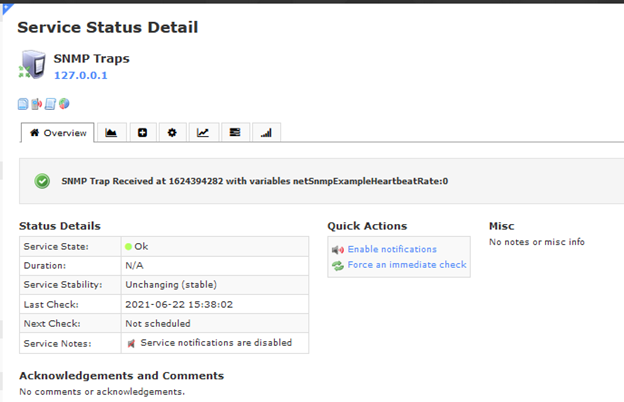
Service Status OK

Every time a trap is received and the netSnmpExampleHeartbeatRate in the example command is set to a 0, it will update the Last Check time: in the service check.

Try it out and see the time change.

To test the Trap to see if it will ignore a received Trap that is not set to a 0 and it does not update the status, run the following.

/usr/bin/snmptrap -v 2c -c public 127.0.0.1 '' NET-SNMP-EXAMPLES-MIB::netSnmpExampleHeartbeatNotification netSnmpExampleHeartbeatRate i 1

Notice how the Last Check: time did not update. That is a good thing as the trap is set to only update Nagios when a 0 is received for the netSnmpExampleHeartbeatRate OID.

Adding Warning and Critical Trap Definitions

Now we will be adding the Warning and Critical trap definitions in the SNMP Trap Interface. We will be using the OK Trap as a template to create them with some changes.

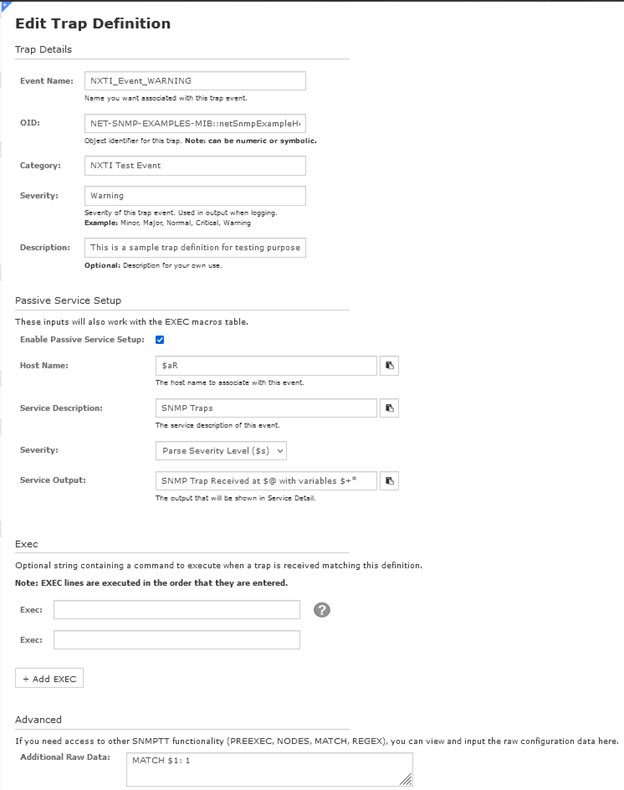
  1. Go to the SNMP Trap Interface menu and click on the Add a Trap Definition Tab to add a trap. Most of the fields will be the same as the OK trap with the following changes.
  2. Use the following for the Event Name: NXTI_Event_WARNING
  3. In the Severity field, use the following: Warning
  4. In the Additional Raw Data field, use the following: MATCH $1: 1
  5. Submit the change.

Warning Trap Definition

  1. For the Critical Trap, add another Trap definition to the system but with the following changes.
  2. Use the following for the Event Name: NXTI_Event_CRITICAL
  3. In the Severity field, use the following: Critical
  4. In the Additional Raw Data field, use the following: MATCH $1: 2
  5. Submit the change.

Critical Trap Definition

Testing the New Traps

To test out the new Traps, in XI, go to the Home > Service Status menu and search for the SNMP Traps service for the host called 127.0.0.1.

If should still be showing an OK status.

Next run this in a root shell to set the status to Warning.

/usr/bin/snmptrap -v 2c -c public 127.0.0.1 '' NET-SNMP-EXAMPLES-MIB::netSnmpExampleHeartbeatNotification netSnmpExampleHeartbeatRate i 1

Check the Status of the SNMP Traps service and it should show a Warning status.
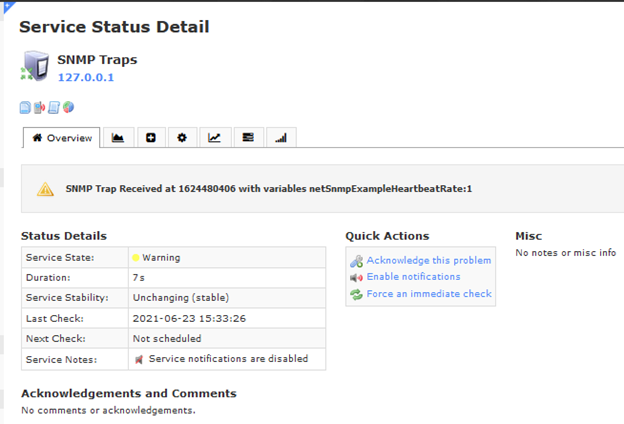
Service Status Warning

To test the Critical Trap, run this in the root shell.

/usr/bin/snmptrap -v 2c -c public 127.0.0.1 '' NET-SNMP-EXAMPLES-MIB::netSnmpExampleHeartbeatNotification netSnmpExampleHeartbeatRate i 2

Check the Status of the SNMP Traps service and it should show a Critical status.

Service Status Critical

To put the Status back to OK, run this.

/usr/bin/snmptrap -v 2c -c public 127.0.0.1 '' NET-SNMP-EXAMPLES-MIB::netSnmpExampleHeartbeatNotification netSnmpExampleHeartbeatRate i 0

If you see the changes, then the Traps are setup correctly.

Adding Using the Command Line

Another option is you can add the Traps to XI using the command line.

These can be imported into NXTI using a script which can save time creating them in the Web Interface and also it allows for many traps to be added to the system at once.

First, you will need to get an example Trap to modify and we will be looking at the OK trap for that.

The text Trap definitions are in the /etc/snmp/snmptt.conf.nxti file so open it up with an editor and search for this string.

NXTI_Event_OK

You should see the following trap definition.

EVENT NXTI_Event_OK NET-SNMP-EXAMPLES-MIB::netSnmpExampleHeartbeatNotification "NXTI Test Event" Normal

FORMAT Received trap "$N" with variables "$+*"

EXEC php /usr/local/nagiosxi/scripts/nxti.php --event_name="$N"  --event_oid="$i" --numeric_oid="$o" --symbolic_oid="$O" --community="$C" --trap_hostname="$R" --trap_ip="$aR" --agent_hostname="$A" --agent_ip="$aA" --severity="$s" --uptime="$T" --datetime="$x $X" --unixtime="$@" --category="$c" --bindings="$+*"

EXEC /usr/local/bin/snmptraphandling.py "$aR" "SNMP Traps" "$s" "$@" "" "SNMP Trap Received at $@ with variables $+*"

MATCH $1: 0

SDESC

This is a sample trap definition for testing purposes

EDESC

Copy that data to a text editor so we can modify it to create the Warning and Critical Traps which are the examples below.

EVENT NXTI_Event_WARNING NET-SNMP-EXAMPLES-MIB::netSnmpExampleHeartbeatNotification "NXTI Test Event" Warning

FORMAT Received trap "$N" with variables "$+*"

EXEC php /usr/local/nagiosxi/scripts/nxti.php --event_name="$N"  --event_oid="$i" --numeric_oid="$o" --symbolic_oid="$O" --community="$C" --trap_hostname="$R" --trap_ip="$aR" --agent_hostname="$A" --agent_ip="$aA" --severity="$s" --uptime="$T" --datetime="$x $X" --unixtime="$@" --category="$c" --bindings="$+*"

EXEC /usr/local/bin/snmptraphandling.py "$aR" "SNMP Traps" "$s" "$@" "" "SNMP Trap Received at $@ with variables $+*"

MATCH $1: 1

SDESC

This is a sample trap definition for testing purposes

EDESC

EVENT NXTI_Event_CRITICAL NET-SNMP-EXAMPLES-MIB::netSnmpExampleHeartbeatNotification "NXTI Test Event" Critical

FORMAT Received trap "$N" with variables "$+*"

EXEC php /usr/local/nagiosxi/scripts/nxti.php --event_name="$N"  --event_oid="$i" --numeric_oid="$o" --symbolic_oid="$O" --community="$C" --trap_hostname="$R" --trap_ip="$aR" --agent_hostname="$A" --agent_ip="$aA" --severity="$s" --uptime="$T" --datetime="$x $X" --unixtime="$@" --category="$c" --bindings="$+*"

EXEC /usr/local/bin/snmptraphandling.py "$aR" "SNMP Traps" "$s" "$@" "" "SNMP Trap Received at $@ with variables $+*"

MATCH $1: 2

SDESC

This is a sample trap definition for testing purposes

EDESC

You will see the changes on the EVENT line and the change to the MATCH statement.

Create a file on the Nagios server with an editor. I called the file nxti for example and put in the example Warning and Critical traps and save the file.

Now execute the following command to import the traps:

/usr/local/nagiosxi/scripts/nxti_import.php nxti

The script will output one line per trap it imports, here is the output for the example Traps.

NXTI_Event_WARNING

NXTI_Event_CRITICAL

You can close the terminal session as you have completed this part of the import.

Validating Import

Next, you need to open SNMP Trap Interface menu and check to make sure the traps have been imported.

  1. In XI, navigate to the Defined Traps tab in the SNMP Trap Interface page.
  2. Search for NXTI_Event_WARNING or NXTI_Event_CRITICAL and you will see them in the Web Interface.
  3. The final step is to force the NXTI defined traps into the snmptt.conf.nxti file and restart the snmptt service.
  4. Both of these steps are performed by navigating to the Advanced tab and clicking the Restore SNMPTT Configuration button.

After completing these steps you will have successfully imported the traps in the nxti file into the SNMP Trap Interface.

More Information

Here are some details about the Example Trap definition.

The MIB file that holds the Example Trap is the following file on the Nagios server.

/usr/share/snmp/mibs/NET-SNMP-EXAMPLES-MIB.txt

To view the Trap configuration in the file, it has to be converted to a format the snmptt daemon needs to process inbound traps and forward them to Nagios.

The command is called snmpttconvertmib and if you run the following command, it should create a file called /root/example on the server.

snmpttconvertmib --in="/usr/share/snmp/mibs/NET-SNMP-EXAMPLES-MIB.txt"  --exec '/usr/local/bin/snmptraphandling.py "$aR" "SNMP Traps" "$s" "$@" "$-*"' --out=/root/example

If you look in the example file, you will see the following.

#
#
MIB: NET-SNMP-EXAMPLES-MIB (file:/usr/share/snmp/mibs/NET-SNMP-EXAMPLES-MIB.txt) converted on Thu Jun 24 16:26:49 2021 using snmpttconvertmib v1.3
#
#
EVENT netSnmpExampleHeartbeatNotification .1.3.6.1.4.1.8072.2.3.0.1 "Status Events" Normal

FORMAT An example notification, used to illustrate the $*

EXEC /usr/local/bin/snmptraphandling.py "$aR" "SNMP Traps" "$s" "$@" "$-*" "An example notification, used to illustrate the $*"

SDESC

An example notification, used to illustrate the
definition and generation of trap and inform PDUs
(including the use of both standard and additional
varbinds in the notification payload).
This notification will typically be sent every
30 seconds, using the code found in the example module
agent/mibgroup/examples/notification.c

Variables:
  1: netSnmpExampleHeartbeatRate

EDESC

One thing to look at is the Variables: section.

It has the variable called netSnmpExampleHeartbeatRate which is what was used in the snmptrap commands to generate the traps in Nagios.

To find out what that variable is and does, open the /usr/share/snmp/mibs/NET-SNMP-EXAMPLES-MIB.txt MIB file and search for netSnmpExampleHeartbeatRate and you will see a description of what that OID is for.

netSnmpExampleHeartbeatRate OBJECT-TYPE
    SYNTAX      Integer32
    MAX-ACCESS  accessible-for-notify
    STATUS      current
    DESCRIPTION
        "A simple integer object, to act as a payload for the
         netSnmpExampleHeartbeatNotification.  The value has
         no real meaning, but is nominally the interval (in
         seconds) between successive heartbeat notifications."
::= { netSnmpExampleNotificationObjects 1 }

It states that the OID is an integer which is why the 0, 1, 2 was used in the snmptrap command.

This specific part of the command.

netSnmpExampleHeartbeatRate i 0

The letter i says to use an integer for the OID and the above example uses a 0 for the data.

Depending on what trap your devices uses, the OID type may not be an integer and the following link has details on what could be used.

https://linux.die.net/man/1/snmptrap

For example, if your device sends a string as the data, the snmptrap command would use the letter s to designate a string.

TheOIDFromTheDevice s thestringdata

Using the snmpttconvertmib command and searching the MIB file is important. It has to be done to determine what the device sends as the Trap and that effects what is used for the MATCH statement.

For example, if the device sends the string OK, or WARNING, or CRITICAL as the data, the MATCH statements need to look like this.

MATCH $1: (OK)
MATCH $1: (WARNING)
MATCH $1: (CRITICAL)

The () in the MATCH is a regex for the string data and if the string contains what is in between the (), then the Trap will match.

See the below link for details on what can be used for the MATCH statement and some examples.

http://snmptt.sourceforge.net/docs/snmptt.shtml#SNMPTT.CONF-MATCH

Nagios Enterprises, LLC

© All rights reserved. 2026