Products
Working with Hosts on the Mobile Interface
The mobile interface allows you to perform crucial mitigation and planning functions on your monitored hosts.
After you click on one of the host status or issue categories on the home page, host details and available host functions will be displayed.
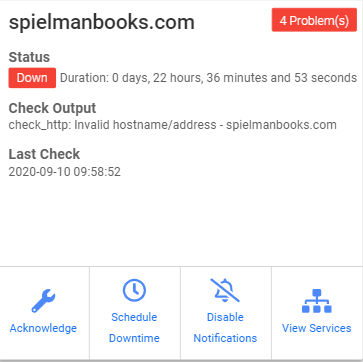
To acknowledge a host issue:
-
Click on the Acknowledge icon.
-
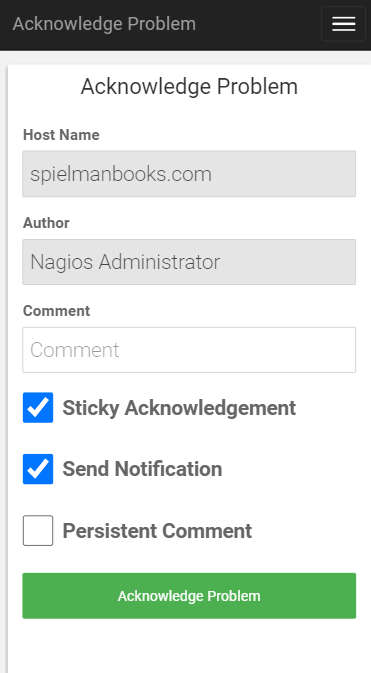
Enter a comment in the Comment field.
-
If you want acknowledgement to disable notifications until the host recovers, check the Sticky Acknowledgement checkbox.
-
If you do not want an acknowledgement notification sent out to the appropriate contacts, uncheck the Send Notification checkbox.
-
If you would like the host comment to remain once the acknowledgement is removed, check the Persistent Comment checkbox.
-
Click Acknowledge Problem.
To schedule downtime:
-
Click on the Schedule Downtime icon.
-
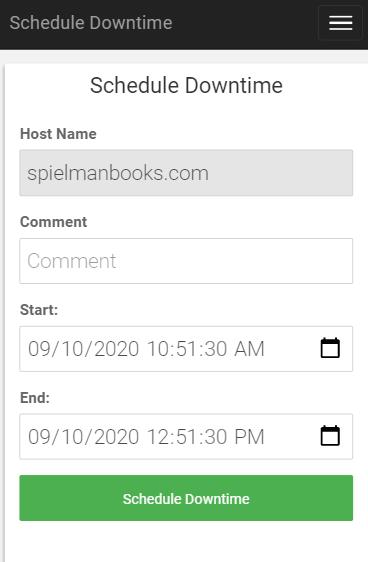
Enter a comment in the Comment field.
-
Enter a start time and date for the downtime.
-
Enter an end time and date for the downtime.
-
Click on Schedule Downtime.
NOTE: Scheduled downtime allows users to set downtime for upcoming events, maintenance, and more without getting notifications.
When the scheduled downtime expires, notifications for this host will resume sending as normal. Scheduled downtimes are preserved during program shutdowns and restarts.
To enable/disable notifications:
- Click on the Disable/Enable Notifications icon.
- A verification will display on the top of the screen.
NOTE: When you choose to disable notifications for a host, notifications will not be sent for the host's issues until notifications are re-enabled.
To view services for a host:
- Click on the View Services icon.
- A scrollable list of all services associated with the host will display. See Working with Services in the Mobile Interface for more information.