Library

Docs
Beta

Products

Adding Additional Instances To ClusterAlerting On Log EventsAnalyzing LogsAuthenticating and Importing Users with AD and LDAPChanging Data Store PathConfiguring FiltersConfiguring InputsConfiguring Multi Tenancy in Nagios Log ServerConfiguring NXLog To Send Additional Log FilesCreating a Log Server DashboardForwarding Logs from Nagios Log Server to Another DestinationHow To Configure NXLog To Send Multi line Logs To Nagios Log Server.How To Configure Windows To Send Logs To Nagios Log ServerHow To Create A Nagios Log Server Instance In The Amazon EC2 CloudHow To Export Or Schedule Reports In Nagios Log ServerHow To integrate Nagios Log Server with XIHow to Backup and Restore the Nagios Log ServerHow to use a Proxy Server with Nagios Log ServerIntegrating Nagios Log Server with Nagios XILog Server Dashboard OverviewManaging ClustersManaging IndicesManaging Snapshots and MaintenanceMonitoring A New Log SourceMonitoring Apache Logs with Nagios Log ServerMonitoring Linux System Logs using Nagios Log ServerMonitoring Squid Proxy Server With Nagios Log ServerNagios Log Server Adding Additional Instances To ClusterNagios Log Server Administrator GuideNagios Log Server Alerting On Log EventsNagios Log Server Analyzing LogsNagios Log Server Architecture and Overview NWC15Nagios Log Server Changing Data Store PathNagios Log Server Cluster Timezone SettingsNagios Log Server Configuration OverviewNagios Log Server Configuring Input FiltersNagios Log Server Configuring InputsNagios Log Server Configuring NXLog To Send Additional Log FilesNagios Log Server Configuring NXLog To Send Multi Line Log FilesNagios Log Server Conversion for VirtualBoxNagios Log Server Custom Alert Message Email TemplateNagios Log Server Data Backup and ArchivingNagios Log Server ELK documentationNagios Log Server ESXi Syslog ConfigNagios Log Server Exporting Log DataNagios Log Server Full Architecture OverviewNagios Log Server How To Configure SSLNagios Log Server How To Create A Nagios Log Server Instance In The Amazon EC2 Cloud EnvironmentNagios Log Server How To Install Using VMwareNagios Log Server How To Select A DownloadNagios Log Server Important Files And DirectoriesNagios Log Server Introduction WebinarNagios Log Server Jobs Subsystem ArchitectureNagios Log Server License EntitlementsNagios Log Server Listening On Privileged PortsNagios Log Server Log Monitoring and Log Management with Nagios NWC14Nagios Log Server Logging InNagios Log Server Managing ClustersNagios Log Server Managing IndicesNagios Log Server Managing InstancesNagios Log Server Managing Snapshots and MaintenanceNagios Log Server Managing UsersNagios Log Server Monitor Your Log Server InstancesNagios Log Server Monitoring A New Log SourceNagios Log Server Offline UpgradeNagios Log Server Overview And TerminologyNagios Log Server Performance And Storage WalkthroughNagios Log Server Poller Subsystem ArchitectureNagios Log Server Real Life Experience of Nagios Log Server NWC15Nagios Log Server Removing An Instance From A ClusterNagios Log Server Sending Multiline Log Files Using SyslogNagios Log Server Sending NXLogs With SSLNagios Log Server Sending Nagios Core Logs To Nagios Log ServerNagios Log Server Sending syslog with SSL/TLSNagios Log Server Single Instance DeploymentNagios Log Server Updating Logstash PatternsNagios Log Server Upgrade InstructionsNagios Log Server Using An Output To Create Nagios XI Passive ObjectsNagios Log Server Using GeoIP DataNagios Log Server Using The Custom Includes PageRemoving An Instance From A ClusterSend Alerts Based on the Log Server Audit LogSending ESXi Logs To Nagios Log ServerSending Mac OS X Logs To Nagios Log ServerSending NXLogs With SSL/TLSSending Nagios Core Logs To Nagios Log ServerSending syslog With SSL/TLSUpgrade Nagios Log ServerUsing An Output To Create Nagios XI Passive ObjectsWaiting for Database StartupNagios Log Server Monitoring Using NCPA + Nagios XI

Creating a Log Server Dashboard

Creating a Dashboard

Creating a New Dashboard in Nagios Log Server

  1. Navigate to Dashboard on the main menu.

  2. To open a blank dashboard, go to Load > Empty Dashboard.

  3. Add rows for the dashboard by clicking + Add a Row.

  4. Create two rows called Fields and Panels.

  5. Save.

  6. Click Add Panel to Empty Row button on lower Row.

  7. On the resulting Row Settings popup, select Table in the Select Panel Type dropdown.

  8. Change the Span drowdown to 12 and Save.

  9. Set the Time Filter on the main dashboard page to the desired time frame. Data will now display in the Fields table.

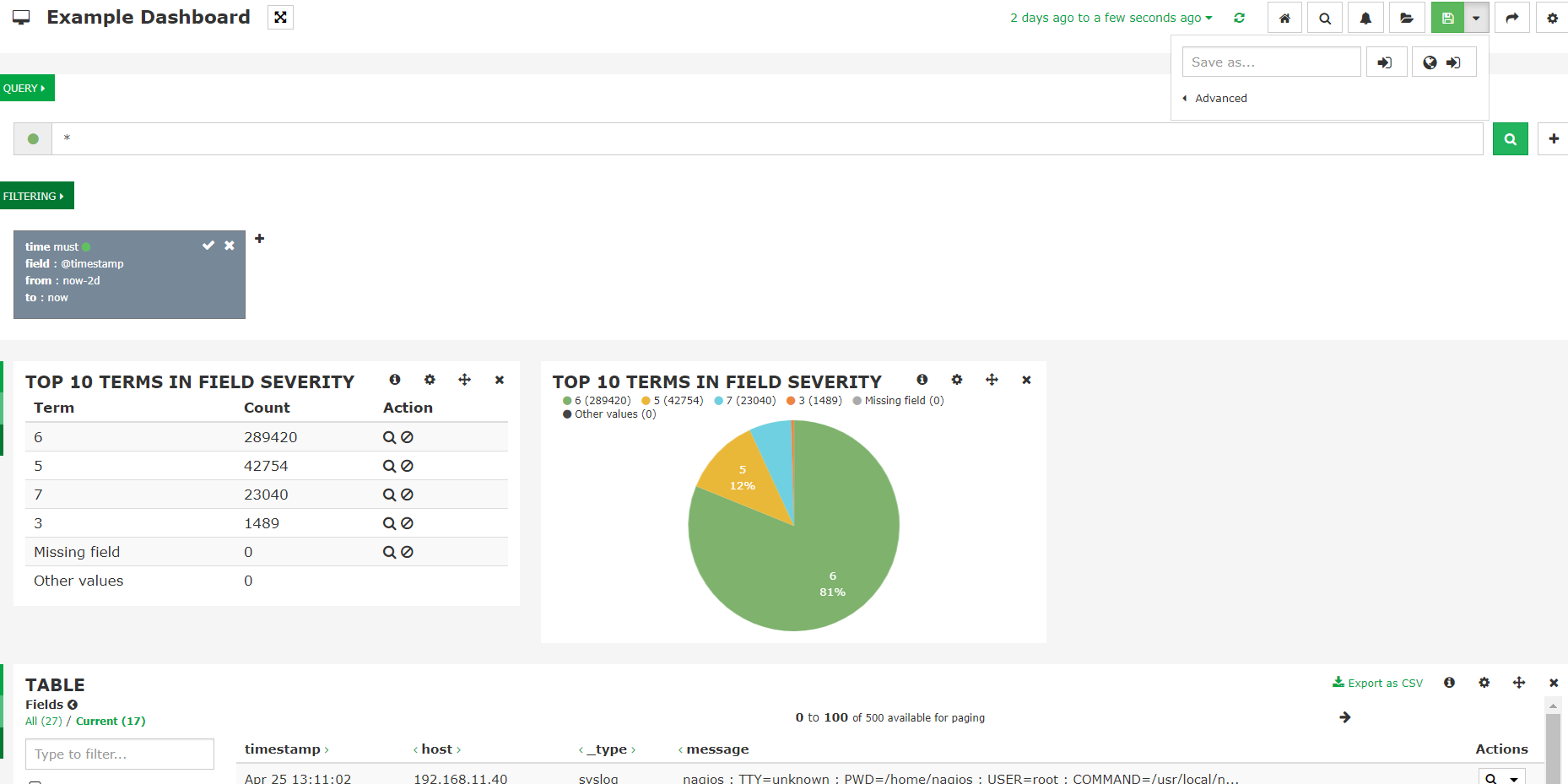
  10. Select table fields that you would like to see in the table. Some examples would be timestamp, host, type, and message.

You can click the Export as CSV link to export this table data.

  1. To add a visual from the data to the Panel row, select one of the field name links. In the Micro-Analysis popup, select the term type you would like to see (Bar, Pie, Table). This example is using Severity and a Pie chart.

  2. The visual will be added to the top of the Fields row. Move the visual to the Panel row by dragging and dropping.

  3. You can configure the visual as desired by clicking on the configure icon in the top right of the visual. (Change the span, for example, to add more than one visual to the row)

  4. Save the dashboard by clicking on the save icon in the top right and naming the dashboard in the **Save As **field.
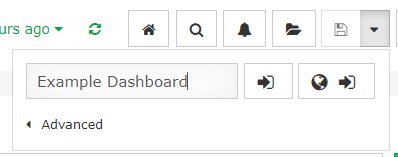
You can save as either a local or global dashboard.
Important Notes:

  • At any time, you can further filter the data presented by entering a lucene query in the Query section of the dashboard.

  • Every widget on the dashboard has a configure icon which can be used to adjust the data or visuals presented.

  • Existing dashboards can be edited in a similar manner as shown above.

Nagios Enterprises, LLC

© All rights reserved. 2026