Products
Nagios XI - Performance Graph Problems
Problem Description
Performance graphs not displaying data when their checks are returning true performance data.
The following troubleshooting steps may help you to find the root cause of the issue, and resolve it.
Editing Files
In many steps of this article you will be required to edit files. This documentation will use the vi text editor. When using the vi
editor:
- To make changes press
ion the keyboard first to enter insert mode - Press
Escto exit insert mode - When you have finished, save the changes in vi by typing
:wqand press Enter
Check that Performance Data is enabled
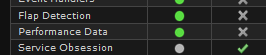
Navigate to Admin > System Information > Monitoring Engine Status
Ensure that the Performance Data process is green.
Count The Amount Of Spooled Files
Nagios spools performance data into small files which get moved around and processed. Sometimes a problem can arise which stops the files from being processed and they begin to spool up. The following commands will count the amount of files in these locations:
ls /usr/local/nagios/var/spool/perfdata/ | wc -l
ls /usr/local/nagios/var/spool/xidpe/ | wc -l
Note: The pipe | symbol is used before the wc -l command.
If the commands return a number greater than 20,000 then it is likely you will need to delete the files as the processes will get caught in a loop and not be able to process them. In the logging steps further on in this article, if there are too many files you'll find that nothing gets logged, hence checking the amount of files first can save a lot of time.
To delete a large amount of files in a directory, execute this command:
find /usr/local/nagios/var/spool/perfdata/ -type f -delete
Note: This command can take a long time to execute, simply due to the volume of files. You can open another SSH session and observe the count of files in the folder with this command:
watch 'ls /usr/local/nagios/var/spool/perfdata/ | wc -l'
When the files are finally deleted, wait approximately thirty minutes to see if performance graphs start to work. If they do not, proceed with the next troubleshooting steps in this guide.
Increase Performance Data Logging Verbosity
Edit the following file from an SSH session:
/usr/local/nagios/etc/pnp/process_perfdata.cfg
Change:
LOG_LEVEL = 0
To:
LOG_LEVEL = 2
The process_perfdata.pl script should now log all errors and debug information to the file /usr/local/nagios/var/perfdata.log which can be watched using this command:
tail -f /usr/local/nagios/var/perfdata.log
Look for any errors, incorrect exit codes, and/or timeouts.
Remember to return this value to it's default setting when troubleshooting is completed.
One of the top problem causes you can find in this log is a typical timeout error, to resolve that temporarily, you can increase the performance data processor's timeout range by editing:
/usr/local/nagios/etc/pnp/process_perfdata.cfg
Change:
TIMEOUT = 5
To:
TIMEOUT = 20
Or a greater number if this continues to be a issue.
Increase NPCD Logging Verbosity
NPCD is a bulk processing tool which reaps and processes your performance data once received. To increase it's logging verbosity edit the following file in an SSH session:
/usr/local/nagios/etc/pnp/npcd.cfg
Change:
log_level = 0
To:
log_level = -1
Yes, that -1 is not a typing mistake, it will increase the verbosity. Now, restart the NPCD service using one of the commands below:
**RHEL 7 | CentOS 7 | Oracle Linux 7 | Debian Ubuntu 16/18
**
systemctl restart npcd.service
Remember to return this value to it's default setting when troubleshooting is completed.
NPCD should now log all errors and debug information to the file /usr/local/nagios/var/npcd.log which can be watched using this command:
tail -f /usr/local/nagios/var/npcd.log
One of the top problem causes to look for in the above log is lines indicating that you are hitting a load threshold, this is common if you are either receiving too much data for NPCD to keep up with the current system's load, or that it is trying to crunch through stacked up performance data.
You can increase this threshold by editing the following file:
/usr/local/nagios/etc/pnp/npcd.cfg
Change:
load_threshold = 10.0
To a value greater than your system's current load. Use this with caution however, as the NPCD process will eat as much load as you give it, so watch your resources!
Check Nagios User Account
In some situations the nagios user account can expire causing issues like this to occur. Run this command to see if the nagios user is expired:
chage -l nagios
If it is, run this command to enable the expired nagios user:
chage -I -1 -m 0 -M 99999 -E -1 nagios
Check Number of Metrics Gathered
It is also possible that the number of metrics gathered by RRD has changed. If you compare what metrics are shown on the graphs to what is shown at the bottom of the service screen, and they're different, you will need to run the RRD conversion script.
Final Thoughts
For any support related questions please visit the Nagios Support Forums at: